
Before you start
Make sure you have the following before following the steps below.
- A Google account — used to sign in to Gemini CLI
- Node.js installed — download free at nodejs.org
- An EULER account with login access at eulerapp.com
- A terminal — Terminal on Mac, Command Prompt or PowerShell on Windows
Step-by-step
Three steps to get EULER running in Gemini CLI.
Install Gemini CLI and sign in with Google
Open your terminal and install Gemini CLI:
Then start the CLI:
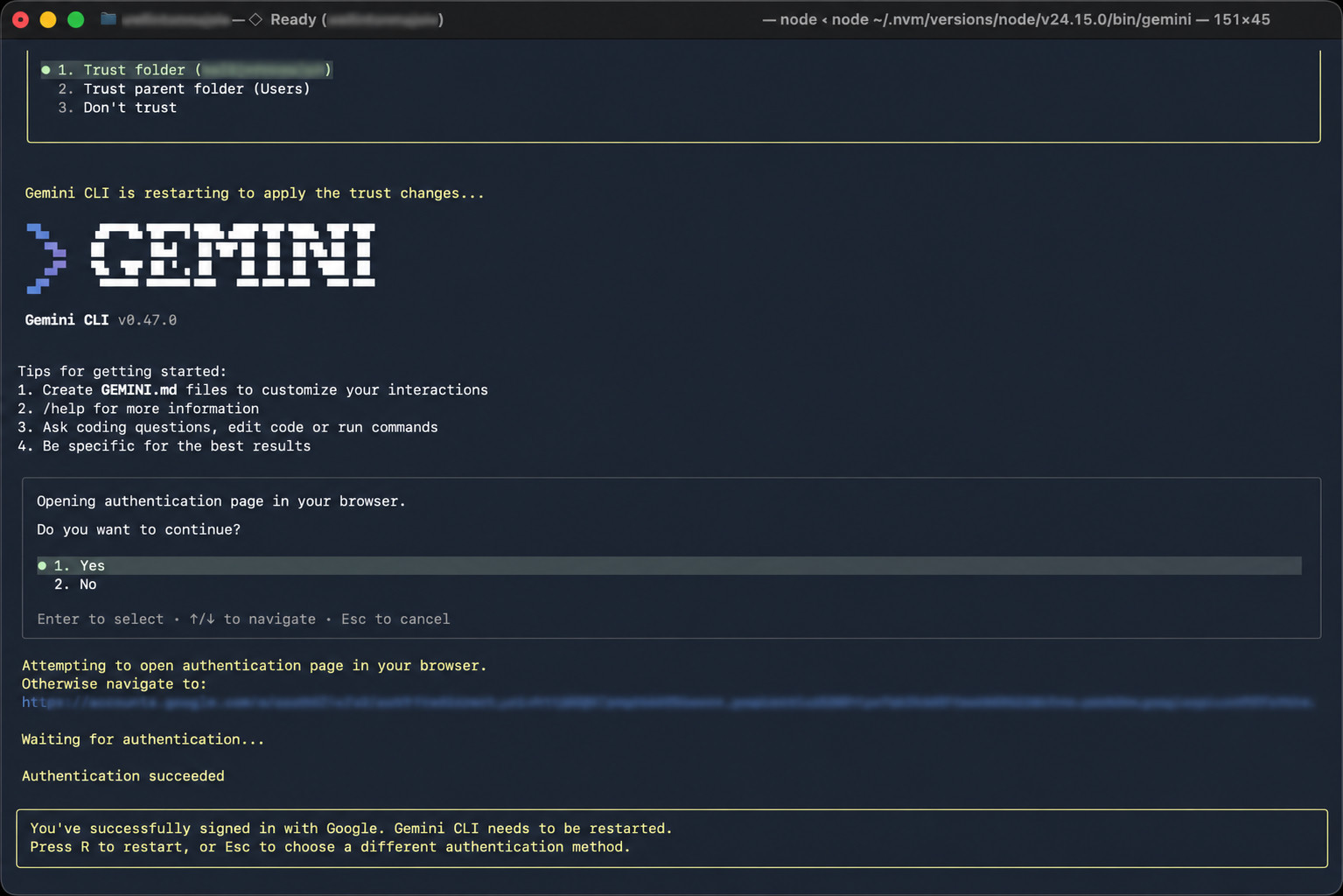
The first time you run gemini, it asks whether you trust the current folder — select Yes, I trust the authors to continue.
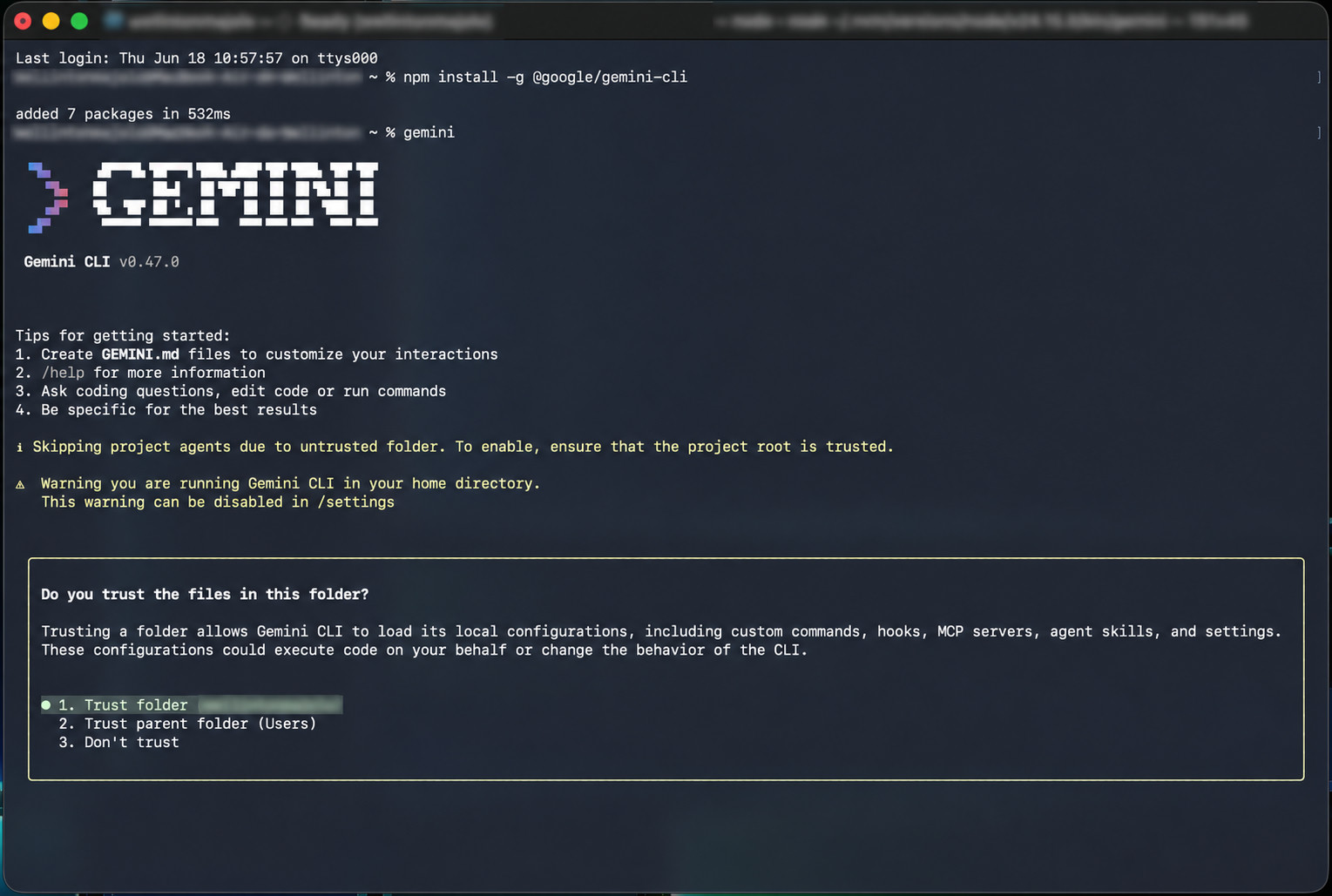
gemini — accept the trust prompt to proceedGemini CLI then asks how you want to sign in. Choose Sign in with Google.
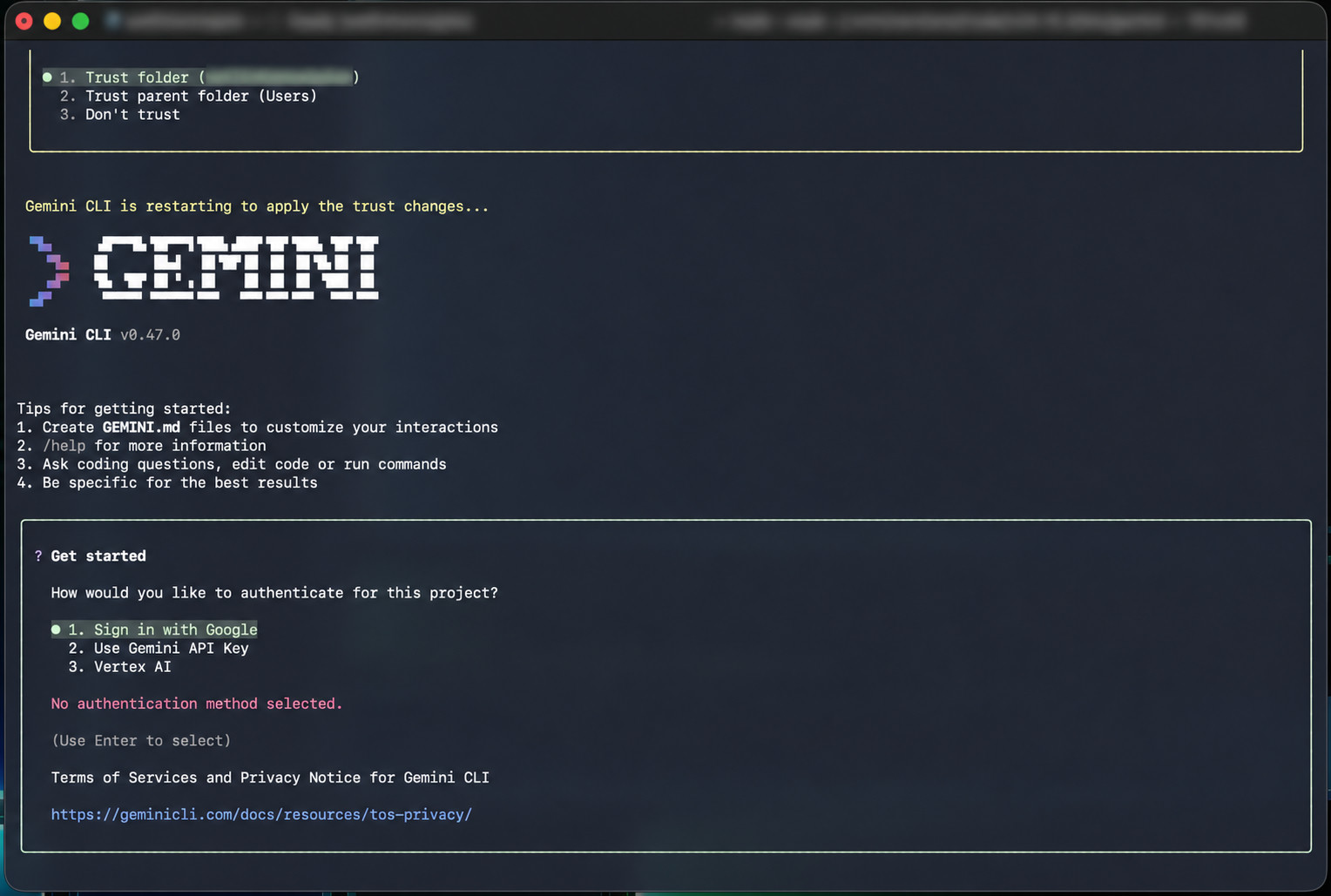
Gemini CLI opens a browser window for Google authentication. Complete the sign-in and return to the terminal — it displays Authentication succeeded when done.
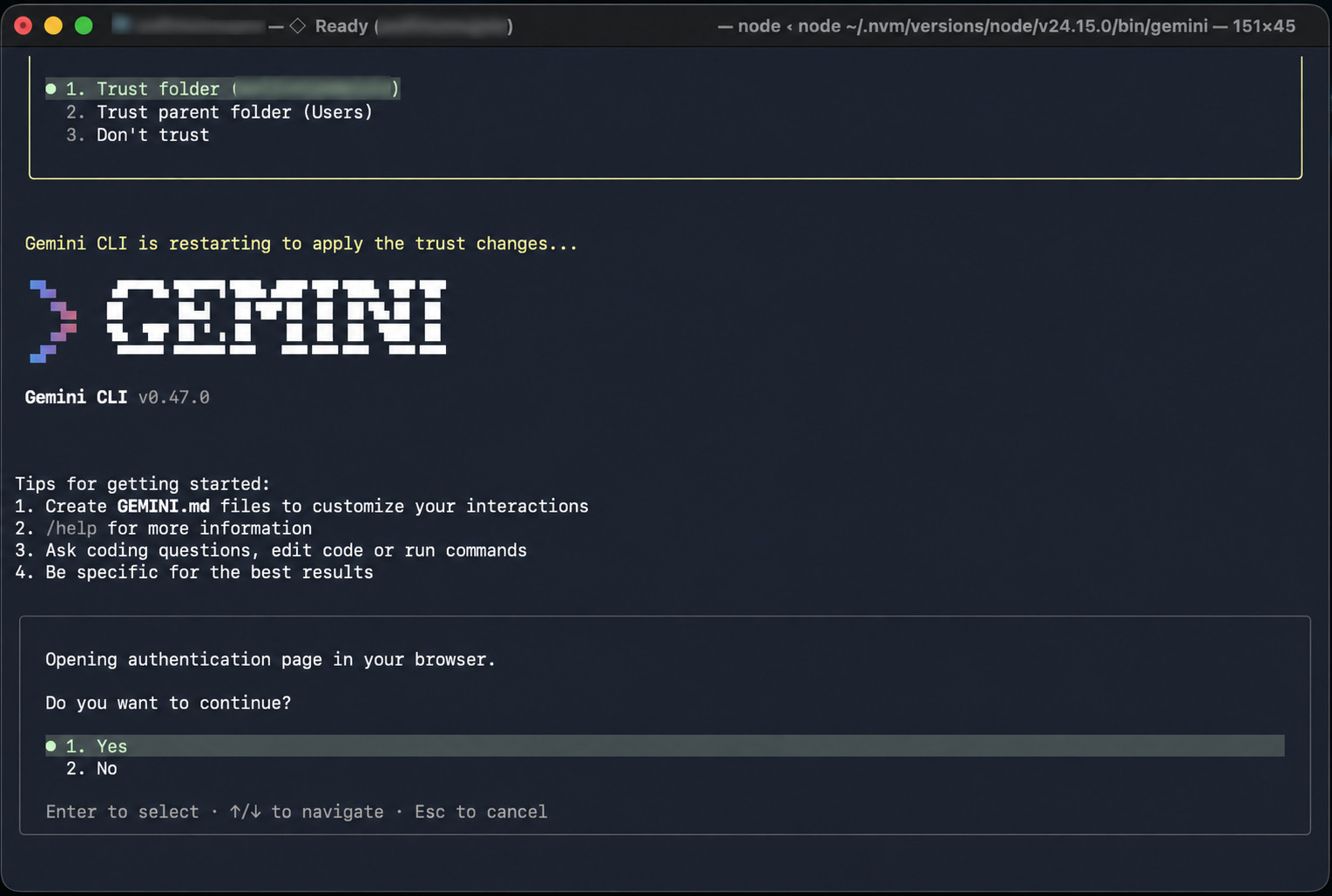
gemini.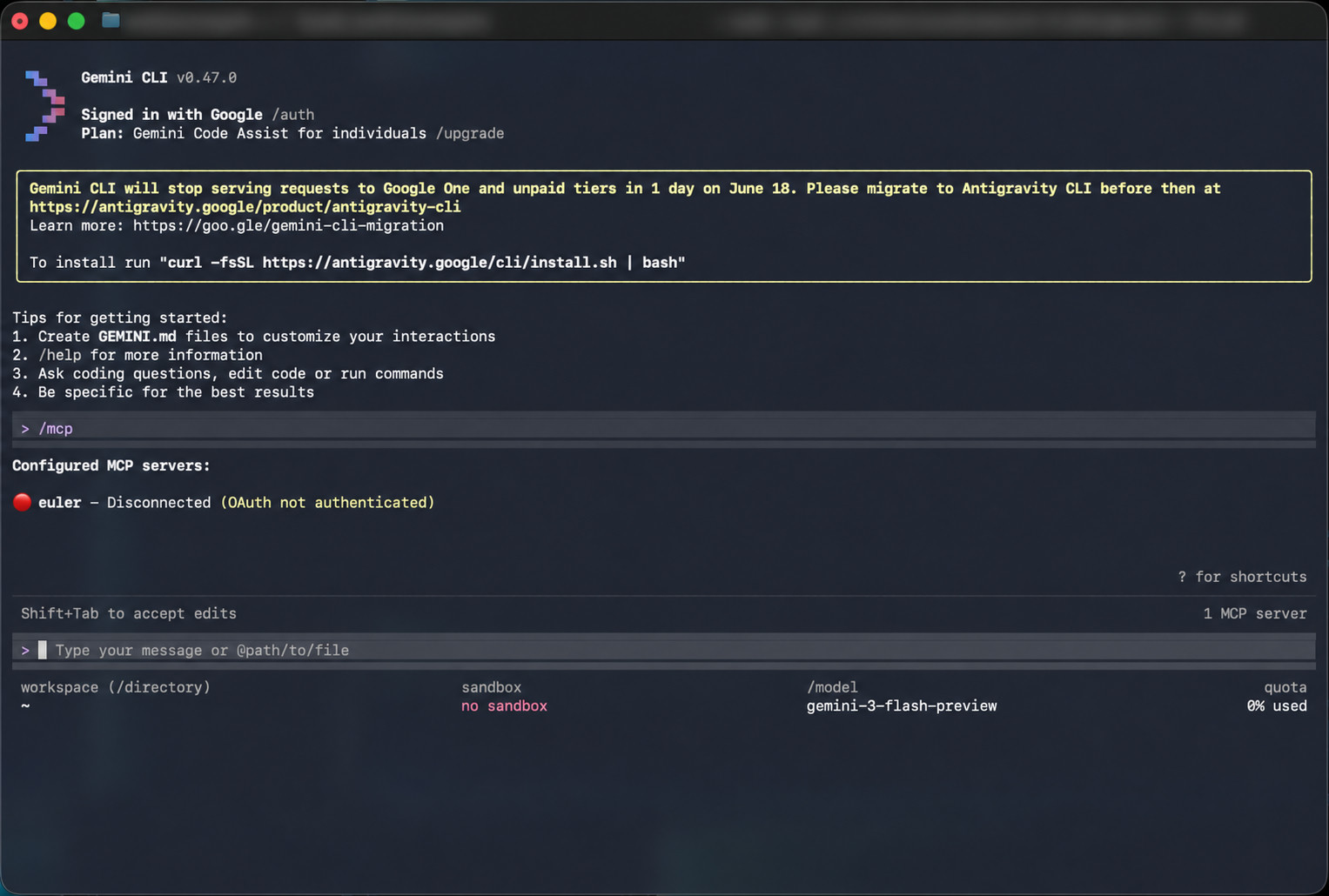
After restarting, Gemini CLI is ready and you are signed in with your Google account.
Add EULER to your settings file
First, quit Gemini CLI by typing /quit and pressing Enter.
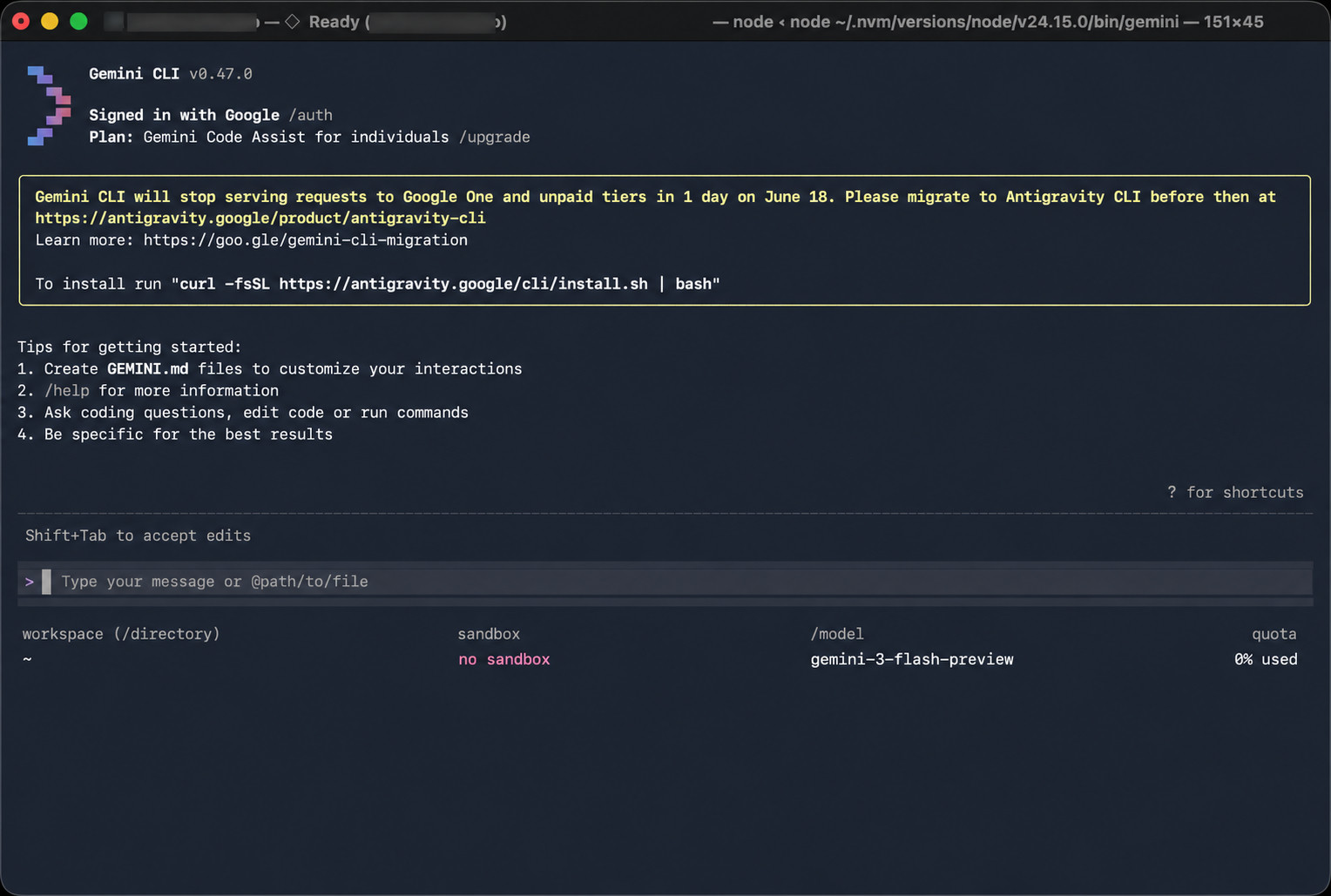
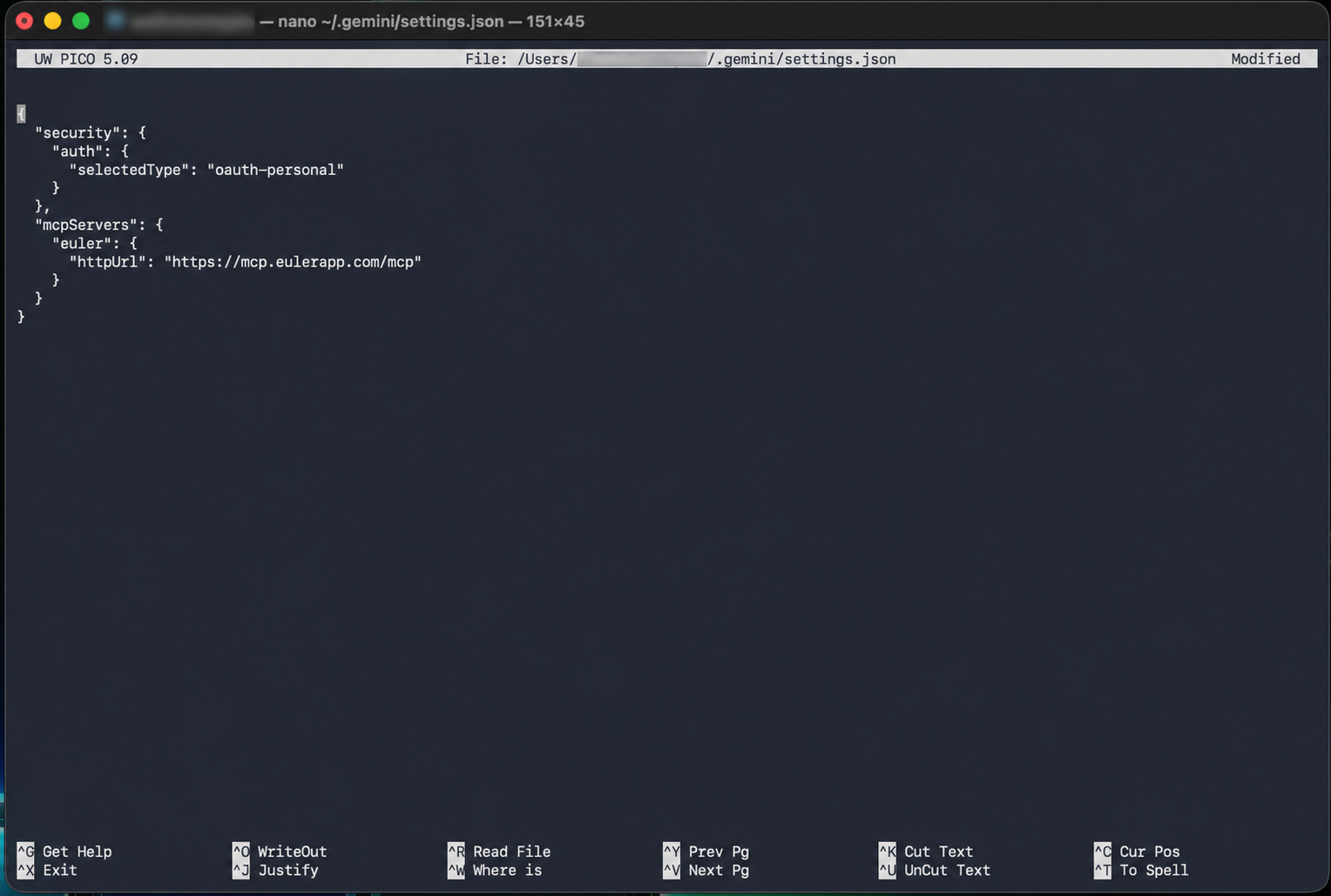
/quit to exit Gemini CLI before editing the settings fileGemini CLI reads MCP server configuration from a settings.json file. Create the folder if it does not exist, then open the file in a text editor:
| Operating system | Settings file location |
|---|---|
| Mac / Linux | ~/.gemini/settings.json |
| Windows | C:UsersYourName.geminisettings.json |
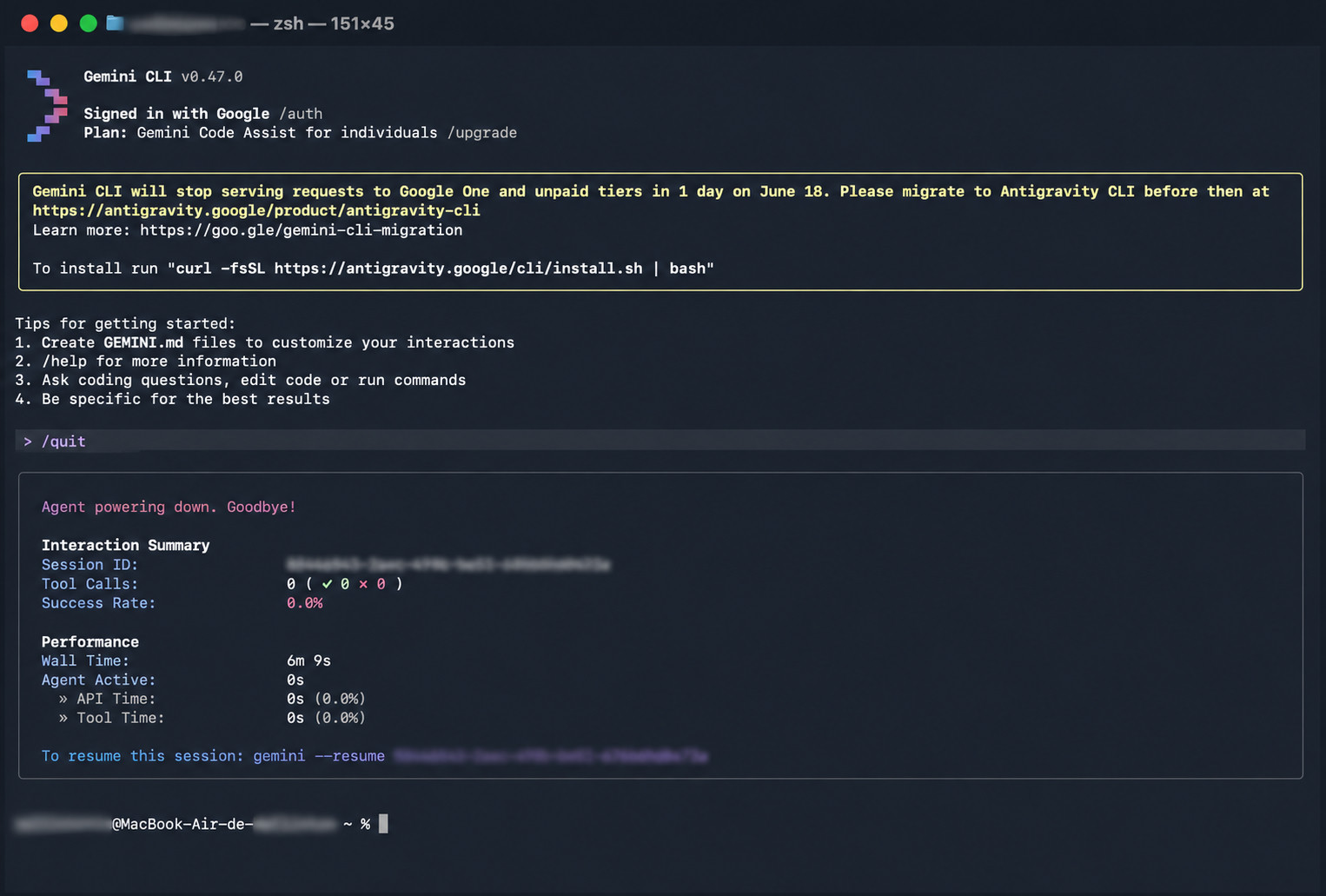
.gemini folder with mkdir -p ~/.gemini, then open the settings file in nanoAdd the mcpServers block to the file. If the file already has content, merge the block into the existing JSON — do not replace the whole file:
Save the file — in nano, press Ctrl+O then Enter to save, then Ctrl+X to exit.
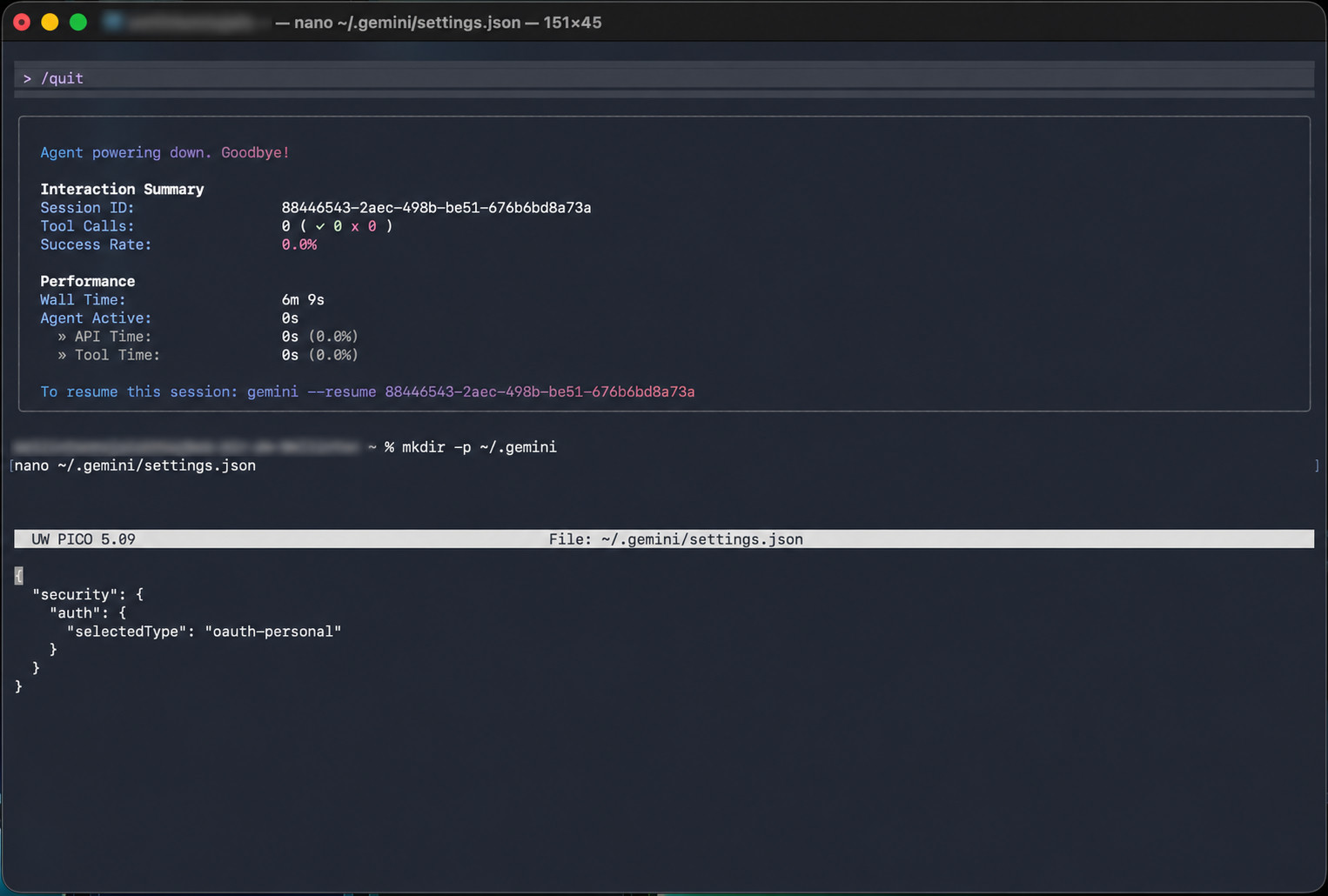
mcpServers block added and saved — the nano title bar shows the file name after savingAuthorize your EULER account
Start Gemini CLI again, then run /mcp to confirm the EULER server has been picked up:
You will see euler listed with a status of Disconnected (OAuth not authenticated). This is expected — the next command starts the login flow.
Now run the authorization command:
Gemini CLI opens a browser window pointing to the EULER login page:
- Log in to your EULER account when prompted.
- Select which accounts you want to grant the AI access to, then click Allow.
- The browser shows "Authentication Successful" — close the window and return to the terminal.
Troubleshooting
Common problems and how to fix them.
| Problem | What to do |
|---|---|
command not found: gemini |
Node.js may not be installed. Download it from nodejs.org, then run the install command again. If Node.js is installed, try running npx @google/gemini-cli instead. |
/mcp shows no servers listed |
Check that settings.json is saved in the correct folder and that the JSON syntax is valid (no missing commas or brackets). Restart Gemini CLI after saving. |
| euler shows as Disconnected after auth | Run /mcp auth euler again. Make sure you clicked Allow on the EULER authorization page before closing the browser. |
| EULER returns empty results | Make sure your EULER account has data for the date range or query. Try a broader question to confirm the connection is working. |
| 401 Unauthorized error | Your authorization session has expired. Remove the euler entry from settings.json, save, restart Gemini CLI, re-add the entry, and run /mcp auth euler again. |
Also available on Claude & ChatGPT
Prefer a chat interface? EULER connects the same way everywhere — one URL, one login, no API key.