
Before you start
EULER's connector is available on Claude's paid plans. Make sure you are on one before following the steps.
Step-by-step
Four steps to get EULER running in Claude — no terminal, no code.
Open the EULER connector in Claude's directory
EULER is an official connector in Claude's directory — there's no URL to paste. This works the same in the Claude web app (claude.ai) and the desktop app.
- Open the EULER connector page directly:
claude.ai/directory/connectors/euler. - Or, inside Claude: click your name in the bottom-left, choose Settings → Connectors, click Browse connectors, and search for EULER.
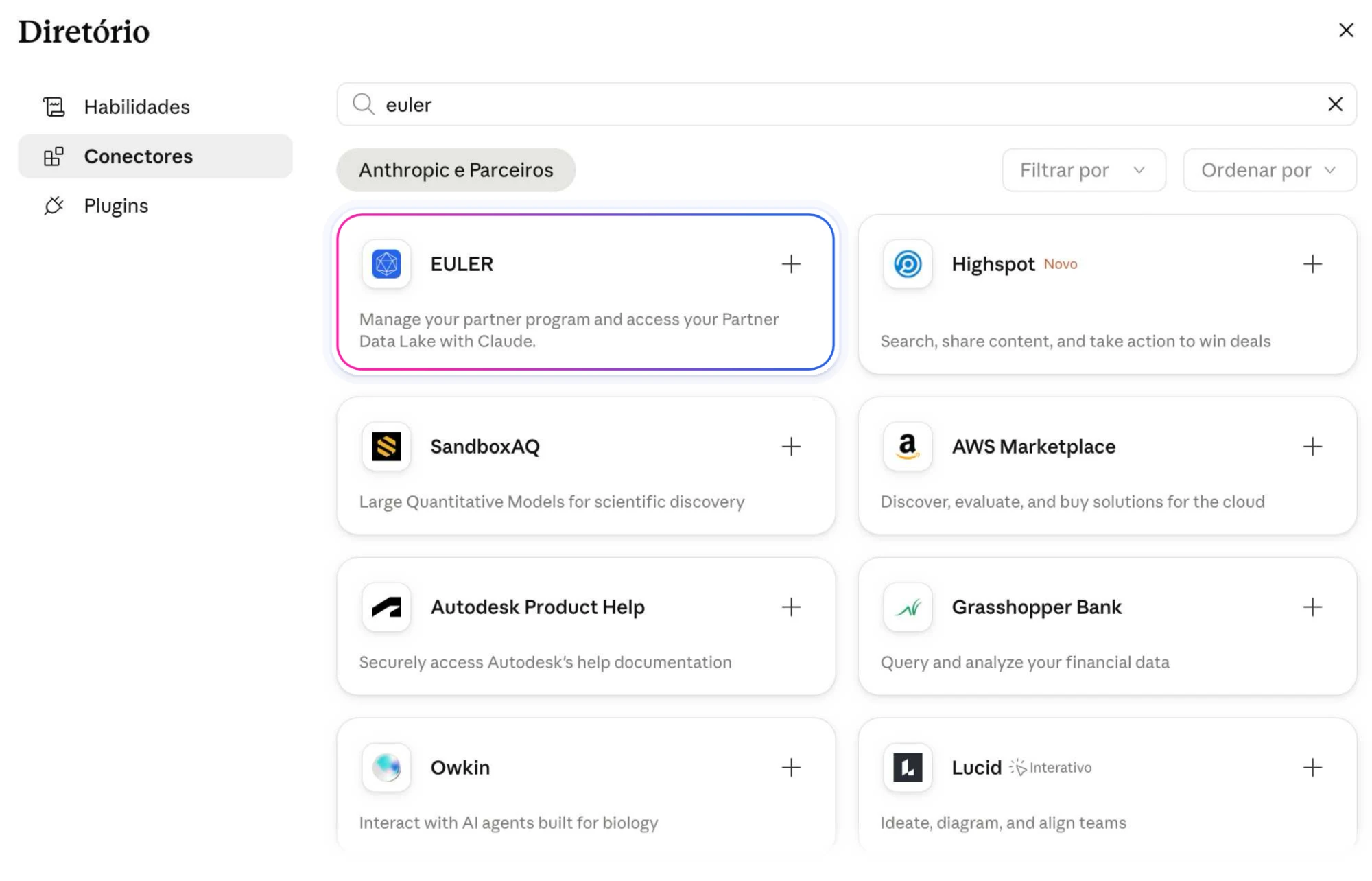
Add the EULER connector
On the EULER connector card, click Add (the + button). Because EULER is an official listed connector, there's nothing to type — no MCP URL, no API key.
https://mcp.eulerapp.com/mcp. The directory connector above is the recommended path.
Authorize your EULER account
Right after adding the connector, click Connect next to EULER. Claude opens the EULER login in a new window.
- Sign in with your EULER email and password.
- EULER asks which account(s) you want to share with Claude. Select your account(s) and click Allow.
- You're redirected back to Claude and EULER shows as Connected. You won't be asked to log in again.
Use EULER in a chat
Turn EULER on for any conversation where you want partner data:
- Start a new chat. Click the + icon at the lower-left of the message box.
- Open Connectors (or the connector menu) and toggle EULER on for this conversation.
- Ask your question — Claude calls EULER's tools automatically and shows the results.
| You ask… | What happens |
|---|---|
| “Show me our top partners this quarter” | Claude calls EULER's performance tool and returns ranked partner data |
| “Any pending commissions this month?” | Claude calls the commissions tool and summarizes pending payouts |
| “Submit a referral for Acme Corp” | Claude calls the submit-referral tool and confirms before sending |
Troubleshooting
Common problems and how to fix them.
| Problem | What to do |
|---|---|
| I can't find EULER in the directory | Make sure you're on a Pro, Max, Team, or Enterprise plan and signed in. Search “EULER” under Settings → Connectors → Browse connectors, or open claude.ai/directory/connectors/euler directly. On Team / Enterprise, a workspace Owner must add it at the organization level first. |
| EULER returns errors right after connecting | Remove EULER from your Connectors and add it again so the EULER login runs cleanly. Make sure you completed the sign-in and clicked Allow. |
| EULER is connected but returns empty results | Make sure your EULER account has data for the query or date range. Try a broader question to confirm the connection is working. |
| 401 / “session expired” | Your EULER login session expired. Reconnect EULER (remove and re-add, or click Connect again) to run the login once more. |
| The connector toggle isn't in my chat | Open the + menu at the lower-left of the message box and look under Connectors. On Team / Enterprise it appears once the Owner has added it for the org. |
Also available on ChatGPT & Gemini
Prefer a different assistant? EULER connects the same way — one URL, one login, no API key.